Dual SIM done right: line settings every traveler should check
Set your home SIM as the default voice line and the Zwitchy eSIM as your mobile data line, keep iMessage and FaceTime on your home number, switch automatic data switching off, and turn Data Roaming off for the home SIM but on for the travel eSIM. Five settings, five minutes before you fly.
Contents
A travel eSIM gives you cheap data abroad, but it only saves you money if your phone knows which line to use for what. Add a Zwitchy data eSIM next to your home SIM and your phone becomes a dual-SIM device: two lines, two jobs. Get the line settings right and you keep your home number for calls, texts and bank codes while all your data runs over the cheap travel plan. Get them wrong and your phone can quietly fall back to expensive home roaming. Here are the exact settings to check, a five-minute job before you fly.
How dual SIM works with a travel eSIM
Your Zwitchy eSIM is data-only. It carries internet, not your phone number. Your home SIM keeps doing what it always did, calls, SMS, and the one-time passcodes (OTP) your bank sends. The travel eSIM simply takes over the data role while you're abroad. Nothing about your home number changes; you're just telling the phone to split the work between two lines. And remember: installing the eSIM is not the same as activating it, the plan starts when you set it as your data line and connect abroad, so there's no rush to install early.
The five settings to check
Whether you're on iPhone or Android, five settings decide whether dual SIM actually saves you money. Check each one:
- Default voice line = your home SIM. Calls and texts go out on your own number, exactly as they do at home.
- Mobile data line = your travel eSIM. All internet runs over the Zwitchy plan, not your home carrier.
- iMessage & FaceTime tied to your home number. Keep them on your home line so friends still reach you at the same address.
- Data switching OFF. Stop the phone from silently borrowing data from your home SIM when the eSIM signal dips, this is the setting that causes surprise roaming bills.
- Data Roaming: OFF on the home SIM, ON on the travel eSIM. The travel eSIM needs roaming ON to reach partner networks abroad, that's normal and generates no bill. The home SIM stays OFF so it never roams.
The big one is data switching. If it's left on, your phone can flip data back to your home SIM the moment the eSIM has a weak spot, and your home carrier charges roaming rates for every megabyte. Turn it off and the phone stays on the travel eSIM. Curious why roaming ON is correct and safe for a travel eSIM? See our data-roaming guide.
Set it up on iPhone
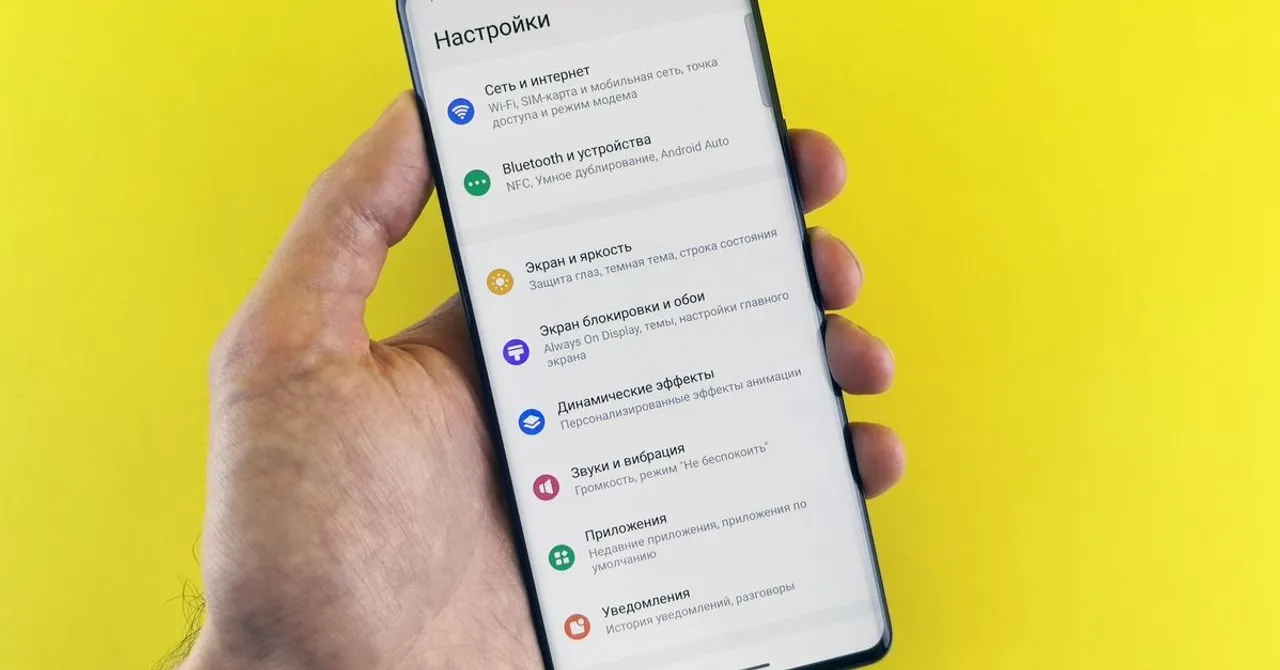
On iOS, open Settings → Cellular (called Mobile Data or Mobile Service in some regions). You'll see both lines listed. Apple documents the full flow in its Using Dual SIM guide. Set these:
- Default Voice Line → tap it and choose your home SIM.
- Cellular Data → choose your travel eSIM.
- Allow Data Switching → turn this OFF. It sits on the same Cellular Data screen.
- Tap your home SIM → Data Roaming OFF. Tap your travel eSIM → Data Roaming ON.
- Settings → Messages → Send & Receive, and Settings → FaceTime: confirm your home number is the selected line.
Set it up on Android
Android wording varies by brand, Samsung, Pixel and others each phrase it a little differently, but the SIM manager is where you go. Open Settings → Network & internet → SIMs (on Samsung: Settings → Connections → SIM manager). Google's Pixel dual-SIM help shows the Pixel version.
- Preferred SIM for calls → your home SIM.
- Preferred SIM for text messages / SMS → your home SIM.
- Preferred SIM for mobile data → your travel eSIM.
- Turn OFF any "automatically switch data" or "auto data switching" option so the phone can't fall back to the home SIM.
- Open the travel eSIM's settings and turn Data Roaming ON; open the home SIM and turn Data Roaming OFF.
iPhone vs Android at a glance
| Setting | iPhone path | Android path |
|---|---|---|
| Calls & texts on home number | Settings → Cellular → Default Voice Line → home SIM | SIM manager → Preferred SIM for calls/SMS → home SIM |
| Data on travel eSIM | Settings → Cellular → Cellular Data → travel eSIM | SIM manager → Preferred SIM for data → travel eSIM |
| Stop silent fallback | Settings → Cellular → Cellular Data → Allow Data Switching OFF | SIM manager → Auto data switching OFF |
| Home SIM roaming | Tap home SIM → Data Roaming OFF | Home SIM settings → Data Roaming OFF |
| Travel eSIM roaming | Tap travel eSIM → Data Roaming ON | Travel eSIM settings → Data Roaming ON |
Bank and login codes still arrive on your home number. Because calls and SMS stay on your home SIM, the one-time passcodes (OTP) from your bank or apps keep coming through as normal, no extra setup needed. Keep your home SIM in the phone and it just works. More on this in keeping your number on a travel eSIM.
Pre-flight checklist
Two minutes before you fly, or the moment you land, confirm:
- Home SIM = default voice line; travel eSIM = data line.
- Data switching OFF.
- Home SIM Data Roaming OFF; travel eSIM Data Roaming ON.
- iMessage/FaceTime showing your home number.
- New to eSIM setup? Walk through it in the step-by-step install guide, and check your handset on our device page.
Will I still get my bank's OTP codes abroad?
Yes. OTP codes arrive by SMS or call on your home number, and your home SIM keeps handling calls and texts. As long as the home SIM stays in the phone, the codes come through as usual, even though your data is running on the travel eSIM.
Why turn data switching off?
With data switching on, the phone can quietly move your data back to the home SIM whenever the travel eSIM signal weakens, and your home carrier bills that as roaming. Off, the phone stays on the cheap travel plan; worst case you briefly have no data instead of a surprise bill.
Do I really need Data Roaming ON for the travel eSIM?
Yes, and it's completely safe. A travel eSIM connects to partner networks in the country you're visiting, which the phone treats as roaming, so the toggle must be ON for data to work. It uses your prepaid Zwitchy plan; there is no separate roaming bill.
Can I still make normal calls on my own number?
Yes. With your home SIM set as the default voice line, calls and texts go out on your usual number exactly as at home. Just remember your home carrier's own international call and roaming rates apply to those calls.
Does installing the eSIM start my plan?
No. Installing only adds the eSIM to your phone. The plan begins when you set it as your data line and connect to a network abroad, so you can install early and travel without worry. You'll get usage alerts at 80% and 100%, and top-ups apply instantly if you need more.
My phone shows two lines, which one should say 'roaming'?
Only the travel eSIM should show roaming while you're abroad. If your home SIM shows roaming, its Data Roaming toggle is still on, turn it off. If neither line has data, check that the travel eSIM is set as your data line and its roaming is on.